
- Two halves, one identity
- The app
- The home server
- The first real session
- Testing without a camera
- How it was built
- Improvements
- References
My NX1000 is a mirrorless camera from 2012 with a feature that was ahead of its time: Wi-Fi, and with it Auto Backup. Turn the mode dial, press a button, and every new photo and video walks over to a PC in the house while the camera sits on the shelf. The camera still does that today. What is gone is the other end: Samsung left the camera business, the Windows tool no longer installs, and the cloud services it once talked to have been switched off. So I wrote the other end myself. Samsung Camera Backup is an Android app that makes the phone the camera’s backup target on the road, and a small home server in a container that does the same at home and processes the files afterwards. This post is the tour, including what the first real session with the camera taught me.
Two halves, one identity
The camera learns about its backup target from a small text file on the SD card. Both halves of this project write that file, and both can present the same identity to the camera, so one card works at home and on the road and the camera talks to whichever target is on the network it is currently on. How the camera finds the target and what it sends is written up in the project’s protocol notes; for this post it is enough to know that the camera is a plain network client, keeps its own record of what it has already sent, and never offers a file twice.
That last point shaped the design more than anything else. A photo delivered to the phone on a trip will never be offered to the home server later, so the phone has to be able to hand it on.
The app
The app runs a foreground service that waits for the camera, either on the phone’s hotspot or on a shared Wi-Fi. On first start a three-step wizard asks where photos should go, which folder or server to use, and what name the camera should show, and exports the pairing file for the SD card.
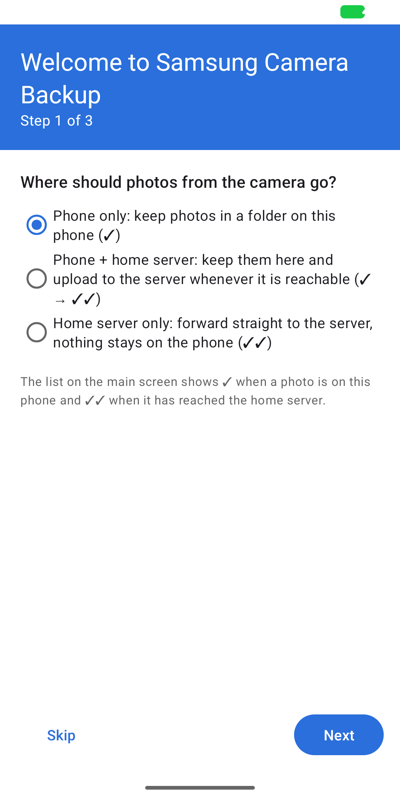
There are three modes. Phone only keeps the files in a folder on the phone, the app’s own storage or any folder from the system picker, for example one that a sync client watches. Home server only streams every file straight to the server and keeps nothing. And Phone + home server, the one I use when travelling, keeps the files on the phone and uploads them to the server after every session or on demand, whenever the server is reachable.
The main screen lists every transferred file with a mark borrowed from messengers: One check when the file is on the phone, two when it has reached the home server.
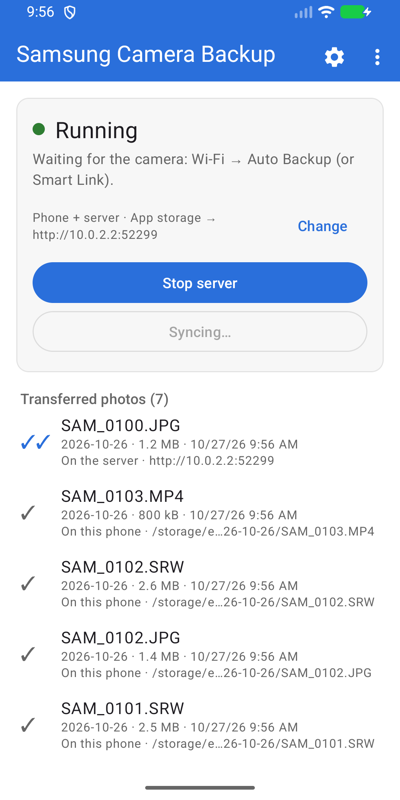
Settings live on their own screen and are locked while the server runs. Changing the identity is the one dangerous action in the app, because every card paired with the old identity stops working, so it asks first, explains why, and keeps a history of previous identities to switch back to.
The home server
The server is one container with one port. It is the always-on target on the LAN, the backend the app uploads to, and the place where files get processed:
- Shift all EXIF dates with exiftool, because cameras of this age have no idea about daylight saving time.
- Render a JPEG next to every RAW file, if switched on; the image ships RawTherapee for that, with LibRaw’s
dcraw_emuas a fallback, and darktable can be built in for those who prefer it. - Rename files from their EXIF date and camera model, with a pattern.
- Move finished files into an export folder, in my case the share that photosort watches.
- Call a webhook or a shell command after every session, which is how Home Assistant learns about it.
Every stage is optional and skipped with a log line when its tool is missing. A ledger remembers every file ever received, so duplicates are recognised even after a file has been renamed and moved away.
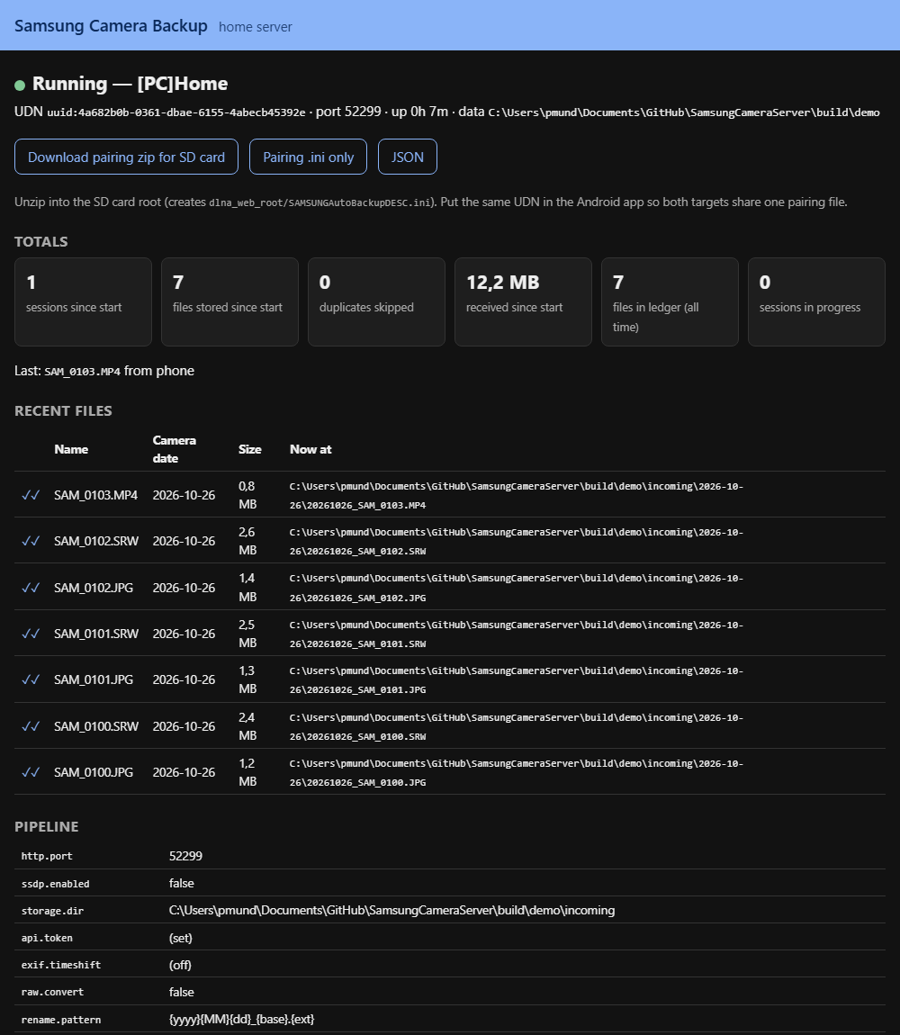
The status page shows totals, the recent files, the pipeline settings, which tools exist in the image, and the log. It also hands out the pairing file as a zip to unpack onto the SD card.
Deployment is a compose file with two volumes: A small /data for configuration, identity and ledger, and /photos for the files themselves, which have a different life than the state and usually move on later.
services:
  cambackup:
    image: ghcr.io/philippmundhenk/cambackup-server:latest
    network_mode: host          # the camera finds the server by multicast
    restart: unless-stopped
    volumes:
      - ./data:/data
      - ./photos:/photos
    environment:
      CAMBACKUP_SERVER_NAME: "[PC]Home"
      CAMBACKUP_API_TOKEN: change-me
Host networking is the simple way to let the camera’s discovery packets reach the container; a macvlan network on the camera’s VLAN is the alternative. Every option is in docs/SERVER.md.
The first real session
Everything above was built and tested against a simulated camera, so the first run against the real one was the moment of truth. It worked flawlessly on first attempt.
Two numbers from that first session are worth knowing before you expect too much. The transfer rate was a steady 0.65 MB/s for every file, small JPEG or forty-megabyte video alike, which is the camera’s 2012 Wi-Fi and not the server. Over a whole run it comes out lower, because every file costs a round trip and a fresh connection on top: The first full session moved 1,000 files and 3.8 GB in one hour and 52 minutes, 0.57 MB/s end to end. Plan with 4.5 to 5 Mbit/s, which is a few seconds per photo and a minute per video, and back up after every outing rather than after a season. And the camera sends at most a thousand files per run, newest first, and remembers what it sent, so a card with more new files than that simply needs Auto Backup started again. Both are in the docs, and the server logs the rate per file so the next person does not have to wonder.
Testing without a camera
The camera was in a drawer for most of the development, so the test setup had to stand in for it. A camera simulator built from the protocol notes runs a complete session against whatever target it is pointed at, and it is used everywhere: In the JVM tests of the protocol core, in the server tests, in the Espresso tests on an Android emulator, and as a command in the server image for testing a deployment from any machine on the network. Every module has a coverage gate at 95 percent of lines, and a smoke test builds the real container image and pushes a JPEG through the whole pipeline, time shift, rename and export across volumes included. The Espresso suite drives the real app, wizard and settings included, with a fake home server on the loopback interface, and runs on an emulator in GitHub Actions on every push.
That setup caught the bugs I would have found the slow way: A truncated upload that was accepted as complete, a sync button that stayed on “Syncing…”, and a container that could not move files between two volumes.
How it was built
I should be honest about the amount of work here: It is far more than my evenings would have covered. Most of the project was written together with Claude Code over a few days while I was traveling, taking photos to later transfer with this system. The test infrastructure, the simulator, the coverage gates, the CI pipeline with its emulator job and the documentation pages are the parts I would not have written by hand. The camera itself was still tested by me, because no simulator knows what a 2012 firmware will do until it does it.
Samsung Camera Backup is an independent project and has no relation to Samsung; the name only says which cameras it is for.
Improvements
A few things I would still like to do:
- Resumable uploads (#18): The camera supports them, the server does not yet; a dropped Wi-Fi link currently restarts the file.
- Per-camera time offsets (#19) on the server, for households with more than one of these cameras.
- Multi-user support (#20): One server for several people and cameras, each with their own pairing file and their own folder, so nobody’s holiday ends up in somebody else’s album.
- A proper release: The first tagged version will put the APK on the releases page and a versioned image on GHCR; until then the
mainimage and the build artifacts are what there is. A minor thing to do once all testing is complete and the last few wrinkles are ironed out.
As always, the code is on GitHub, and improvements are welcome.
References
- Samsung Camera Backup: App, server, docs
- ge0rg/samsung-nx-hacks and n-i-x/pc-autobackup: The earlier work this builds on
- photosort: Where the files go next